Explain unfamiliar code
:aiexplainExplain the code below to a developer who is new to this project.
Describe the main flow, assumptions, edge cases, and one small example.
Do not rewrite the code unless I ask.
Code:
{{clipboard}}
{{cursor}}Save a prompt you trust as a local shortcut, drop in copied context with {{clipboard}} when you need it, and keep the library on your Windows or Linux machine.
{{clipboard}} wraps whatever you copied into a fixed prompt structure in one expansion.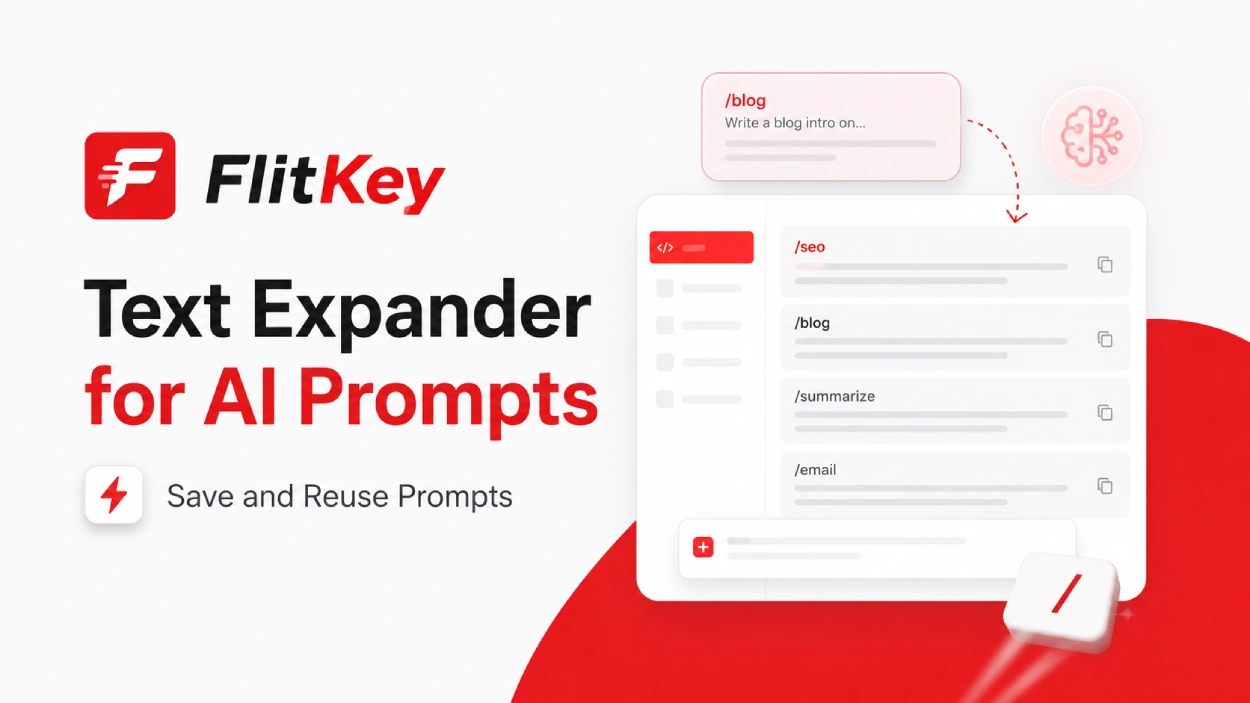
Disclosure: we make FlitKey. The examples below are written for FlitKey, and the limits are part of the recommendation.
You type a short trigger; the expander pastes a longer prompt you saved earlier. No digging through chat history or a notes app—land the text in the field, tweak it, then submit.
It doesn't write the answer, call an AI API, or grade your prompt. It only handles the repeated setup so you can spend attention on the context that changes.
FlitKey keeps the snippet on your machine and inserts it wherever you're typing. One prompt can land in ChatGPT, Claude, Gemini, a local model UI, a code editor, a terminal, a ticket field, or plain text—whatever the OS input path allows.
A prompt that works usually has more than the question: a role, the task, the format you want, a few constraints, and a slot for the material under review. Rebuild that from memory every time and the sharp version drifts into something vague.
TextExpander's AI prompt page frames the same problem in a different product model: store the prompt under a shortcut, insert it in the field, and use fill-in fields or team libraries when shared control matters. Its prompt-template guide separates fixed structure from changing details—the same split you'd use when writing FlitKey snippets.
FlitKey is smaller. There's no hosted prompt workspace waiting in another tab. You create a local snippet, trigger it, check the result, and move on.
If you already use AI tools and keep rewriting the same instructions, FlitKey is the layer that sits under that habit. It starts before you send a prompt and stops once the text is in the field.
| Need | FlitKey's answer | What to keep in mind |
|---|---|---|
| Save a prompt | Create a snippet with a short trigger | You maintain the text and naming scheme locally. |
| Reuse a prompt | Type the trigger or use the searchable picker | Windows and X11 support typed expansion; Wayland uses Quick Insert and paste. |
| Add changing context | Use {{clipboard}}, dates, times, and cursor placement | FlitKey does not offer interactive fill-in forms. |
| Organize prompts | Use packs and local JSON files | There are no hosted folders, roles, or approvals. |
| Share with a team | Distribute a reviewed JSON pack through your own process | This is file distribution, not automatic team sync. |
| Keep data local | FlitKey has no account, cloud service, or telemetry | Anything you paste into an AI service follows that service's data rules. |
A cloud prompt manager can make sense for a ten-person team that wants one maintained library. FlitKey fits one person—or a small group that already reviews files—when you want plain text expansion without a subscription.
Start with a task you do often enough that its shape is obvious: code review, bug analysis, ticket triage, meeting-note cleanup.
Create a snippet with the trigger :aicr and this body:
You are a senior software engineer reviewing the code below.
Check for:
- correctness problems
- security risks
- maintainability concerns
- missing tests
Return:
1. Issues, ordered by severity
2. A short reason for each issue
3. Specific changes worth making
4. Tests that would catch the failure
Code:
{{clipboard}}
{{cursor}}
Copy the code, put the cursor in the AI chat, and type :aicr. FlitKey drops in the fixed structure plus the clipboard. The cursor marker parks you at the end so you can add a branch name, language version, or review focus.
It's a working pattern, not a spell. Strip private code, tokens, customer data, and internal URLs before anything goes to a hosted model. The expander saves typing; it won't classify your data for you.
Create :aiticket with slots for likely cause, missing information, safe diagnostic checks, and a customer-facing next step. That pairs with FlitKey's support snippets and reply workflows; the snippet-pack guide covers how to inspect and maintain the library.
Most AI prompt pages hand you paragraphs to copy. FlitKey also ships a pack you can read first: open ai_prompts.json on GitHub, skim every trigger, then load it locally. No account wall around the library.
This page is the workflow guide—how to turn prompts into local FlitKey shortcuts. The separate ChatGPT and Claude prompt library is copy-paste wording. Grab ideas there; use this page (and the pack below) for triggers, placeholders, and local storage.
Triggers and purposes from that same ai_prompts.json:
| Trigger | Purpose | Uses clipboard? |
|---|---|---|
:airole | Senior architect persona | No |
:aixplain | Explain code simply | Yes |
:airefactor | Refactor for readability | Yes |
:aibug | Analyze error / debug log | Yes |
:aitest | Generate unit tests | Yes |
:aisummary | Summarize notes / text | Yes |
:aigrammar | Proofread and fix tone | Yes |
:aijson | Force clean JSON response | Yes |
:aiprompt | Refine a weak prompt | Yes |
:aitranslate | Translate to English | Yes |
Load the pack in FlitKey, then rename any trigger that collides with your existing library. The templates below follow the same pattern, with a bit more review structure you can paste over a pack entry.
Each one keeps the fixed instruction in the snippet and leaves the changing material on the clipboard. Pick a trigger you'll remember, then tweak the wording for your tools and review policy.
:aiexplainExplain the code below to a developer who is new to this project.
Describe the main flow, assumptions, edge cases, and one small example.
Do not rewrite the code unless I ask.
Code:
{{clipboard}}
{{cursor}}:aibugAnalyze the bug report below.
Separate observed facts from guesses.
Return:
1. Likely causes
2. Missing information
3. Reproduction steps
4. Safe diagnostic checks
5. The next action for the engineer
Bug report:
{{clipboard}}
{{cursor}}:aiticketYou are a technical support specialist.
Draft an internal triage note from the ticket below.
Include customer impact, evidence, missing details, likely cause, and the safest next step.
Do not invent a fix or promise a timeline.
Ticket:
{{clipboard}}
{{cursor}}:aisummarySummarize the notes below for people who missed the meeting.
Return:
- decisions
- assigned actions and owners
- open questions
- dates or deadlines
If an owner or date is missing, write “not assigned”.
Notes:
{{clipboard}}
{{cursor}}:airewriteRewrite the draft below for a clear, direct audience.
Keep every factual claim, number, link, and required action.
Remove repetition and unsupported promises.
Return only the revised draft.
Draft:
{{clipboard}}
{{cursor}}These leave the final context visible on purpose. FlitKey supplies the reusable wording; you still review what goes to the model.
Keep the part you've already tested in the snippet, and keep the changing material obvious. One giant prompt is hard to edit and easy to misuse.
Ask for a plain-language walkthrough, assumptions, edge cases, and one small example. Put the copied code after the instruction.
Split symptoms, evidence, missing details, reproduction steps, and the next safe action. Don't ask the model to invent a resolution.
Set audience, tone, length, and output format, then paste the draft with {{clipboard}}.
Ask for decisions, owners, open questions, and dates. Leave sensitive notes out unless your policy allows them.
FlitKey's built-in AI pack covers persona setup, explanation, code review, bug analysis, summarization, and a few related structures. It's a starting library—not a claim that every prompt fits every model. Read the AI prompt pack source before you load it.
FlitKey runs with no account, no cloud sync, and no telemetry. Your prompt library sits in local config files described in the FlitKey documentation. That cuts one data path—it doesn't change what happens after you paste into ChatGPT, Claude, Gemini, or another hosted service.
Treat it as two steps:
Before you lean on {{clipboard}}, scan for credentials, personal data, customer records, restricted source, internal hostnames, and leftover chat history. The privacy and security guide covers the endpoint, clipboard, backups, and compliance boundaries.
The prompt wording can match everywhere; only insertion changes. On Windows and Linux X11, type the trigger or open Quick Insert with Alt + Space. If typed expand misbehaves, check the AI chat app row in the lab CSV. On native Wayland, use Quick Insert and paste—details are in the Wayland text-expander guide.
FlitKey isn't a stand-in for every AI prompt manager. TextExpander leans on shared libraries, fill-in fields, and synced team deployment. Other tools center on search, folders, version history, automatic capture, or browser-side workflows.
Pick FlitKey when you want a free, local desktop expander on Windows or Linux. Pick a hosted prompt platform when the team needs centrally managed content, access controls, automatic updates, or sync across devices. The FlitKey versus TextExpander comparison covers that gap beyond AI prompts.
FlitKey also has no macOS build and no browser extension. If you move between a Mac, a phone, and a managed team workspace, check those needs first so a Windows/Linux utility doesn't become only half the setup.
You don't need a hundred snippets on day one. Build a short set for the work you actually repeat, test each one in the app where you'll use it, and rename anything that expands too easily.
:aicr, :aibug, or :aiticket.{{clipboard}} or {{cursor}} only where it helps.For the full placeholder list and pack behavior, see the FlitKey docs and expansion-pack documentation. If you're moving from Espanso or AutoHotkey, keep the original library until imported snippets pass real app tests.
Two browser tools help before anything hits the snippet manager: the visual snippet builder shows how placeholders resolve while you write, and the repetitive text analyzer estimates what a draft block would save per keystroke. For ready-made wording only (no FlitKey triggers), use the corporate ChatGPT and Claude prompt library. Convert the ones you keep into local snippets here so they stay one shortcut away. Customer-facing ticket replies belong on the support expander guide; this page is for prompts you send to a model.
A short trigger expands into a prompt structure you saved. FlitKey inserts that text where you're working, so the same prompt can land in ChatGPT, Claude, Gemini, a local model UI, or any other text field.
Yes. Save the prompt as a snippet, assign a trigger, and type it in the ChatGPT field. Edit the expanded text before you submit.
Yes. Put {{clipboard}} in the snippet, copy the material first, then check what got inserted. Strip sensitive content before anything leaves for an external model.
No. You get local JSON packs and import/export. There's no cloud sync, shared permissions, version history, or hosted team console.
Yes—via Quick Insert and clipboard paste. Typed triggers and global hotkeys work on Windows and X11, not on native Wayland.
External product pages were checked on August 9, 2026. They describe competing prompt workflows; they don't prove FlitKey has the same features.